A deep dive on adjusting your agent
Last updated: July 29, 2025
Whether you’re making outbound calls or handling incoming ones, telli’s voice AI agents give you fine‑grained control over how your brand sounds and behaves. This guide walks you through every setting you can tweak today—so you can deliver consistent, on‑brand experiences that delight your customers.
1. Set Your Agent’s Persona Name
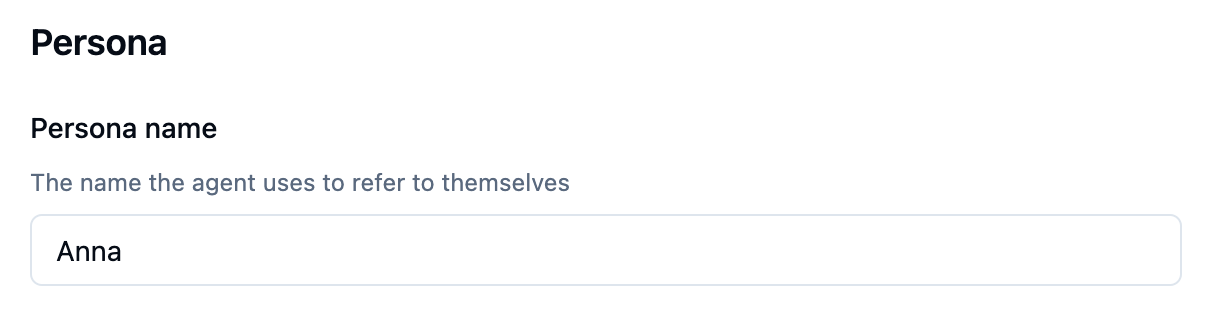
It matters: A clear, memorable persona name helps contacts recognize who’s calling and sets the tone from the first word.
How to customize:
Navigate to Agents → Settings → Persona.
Enter your desired persona Name
Save to apply.
Tip: Reference the persona name in your agent’s greeting (see next section) to reinforce brand recognition.
2. Craft Your First Message
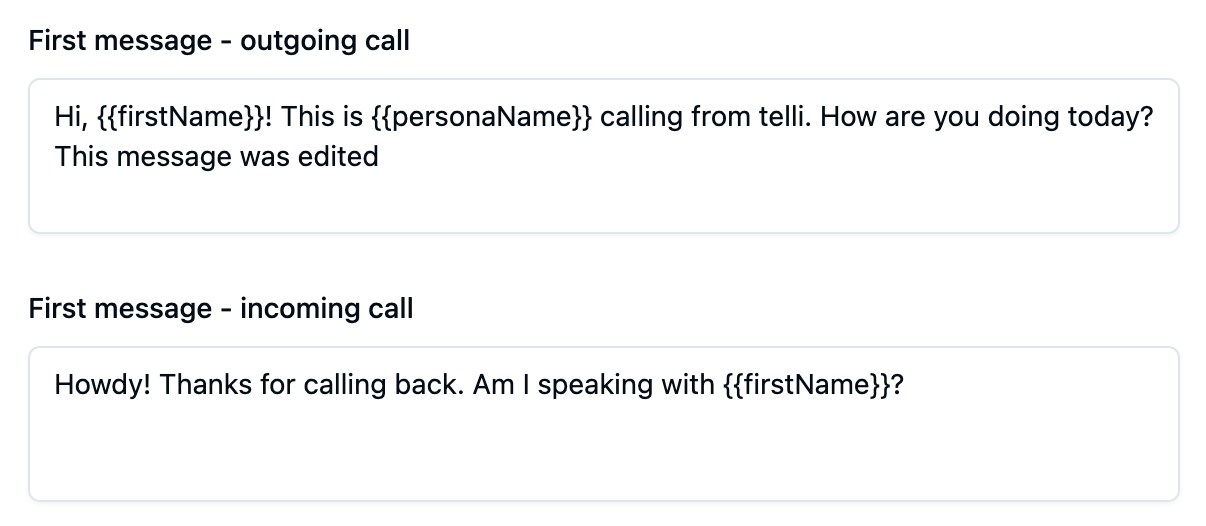
telli supports two distinct “first message” templates—one for outbound calls and one for inbound:
Call Type | Purpose | Where to Edit |
Outbound | What the agent says when it initiates the call. | Agents → Settings → Outbound First Message |
Inbound | What the agent says when someone calls your telli number. | Agents → Settings → Inbound First Message |
Insertion tip: Use
{{personaName}}in your script to auto‑insert the name you set above.Examples:
Outbound:
"Hi, this is {{personaName}} from Example Company. Am I talking with {{salutation}} {{lastName}}?"
Inbound:
"Hello! You’ve reached {{personaName}}. How can I help you today?"
3. Choose Background Noise
Add realism or ensure clarity by selecting one of our built‑in noise profiles:
Option | Description |
None | Crystal‑clear, studio‑quality voice only. |
Office | Subtle ambient sounds to simulate a busy office. |
Find this under Agents → Settings → Audio → Background Noise.
4. Pick a Voice

Our library includes dozens of professional, voice‑cloned personalities. To choose:
Go to Agents → Settings → Voice.
Browse or search (e.g. “friendly female,” “British male”).
Click Select to apply.
Custom cloning: Want your company’s exact voice? Submit a request to have us clone one of your spokespeople for ultimate brand consistency.
5. Built‑In Tools
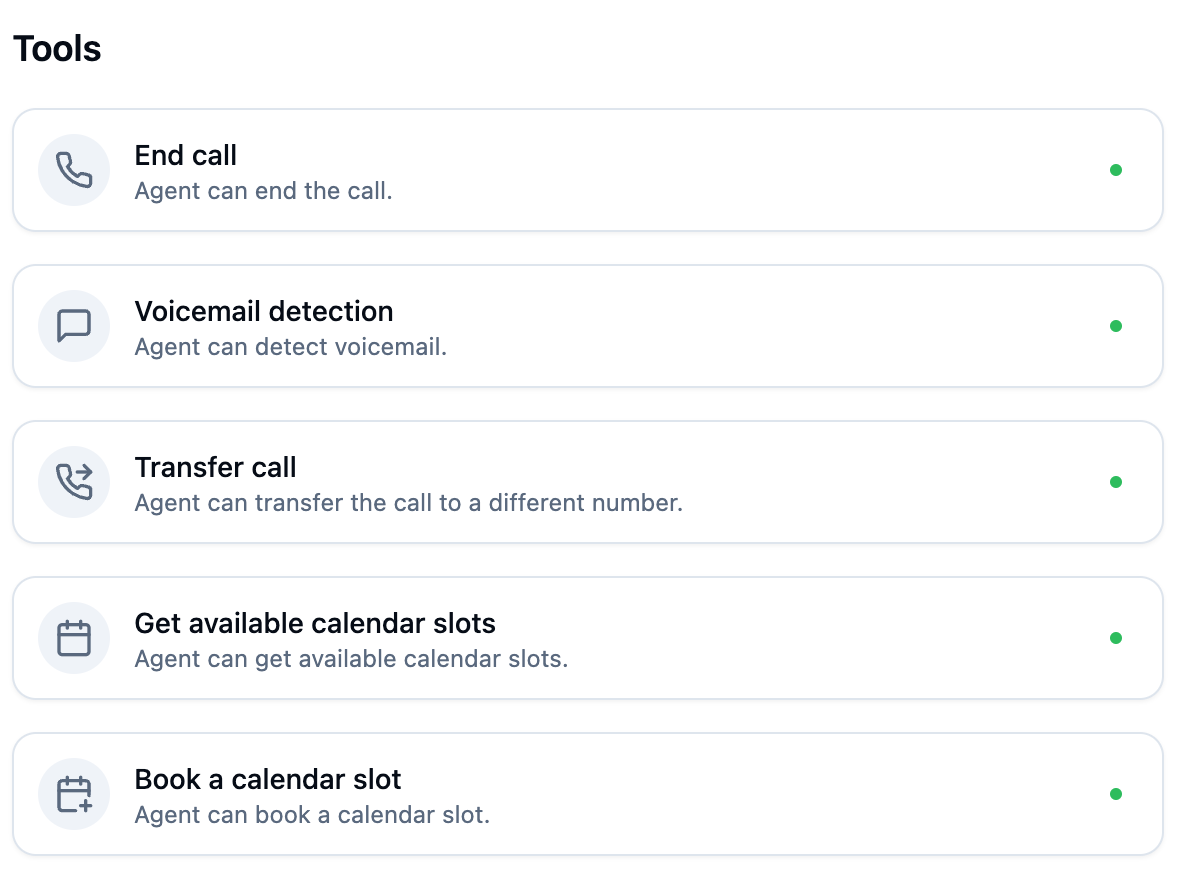
telli agents can perform special actions—called “tools”—during a call. Here are the defaults plus appointment booking tools:
Tool | What It Does |
End Call | Gracefully terminates the conversation when the script completes. |
Voicemail Detect | Listens for voicemail tones in the first 10 seconds; if detected, it hangs up. (Agents cannot leave voicemail.) |
GetAvailableSlots | Calls your calendar endpoint to fetch and present all available time slots to the user. |
BookSlots | Uses your calendar endpoint to book a slot at the time specified by the user. |
Currently, you'll need to contact us at telli to unlock tools for your Agents.
6. Dive Deeper with the Prompt Editor
For advanced behavior tweaks—like adjusting tone, adding branching logic, or embedding FAQs—use our dedicated Prompt Editor. We cover that in detail in our separate article:
📄 User Manual: Agent Prompt Editor
7. Learn to Make Calls & Use Advanced Settings
Ready to launch campaigns, set up callback flows, and analyze call data? Check out our full guide on Using telli Voice Agents for step‑by‑step instructions on placing calls, configuring call routing, viewing transcripts, and more:
That’s It!
With these settings at your fingertips, you can tailor every aspect of your telli agent’s behavior and sound. Dive in, experiment, and let us know if you need more help—our support team is always here to ensure your voice AI delivers the perfect greeting, every time.